
Science & Tech · Big Tech & Internet · 1 day ago
How to change your home address in Google Maps
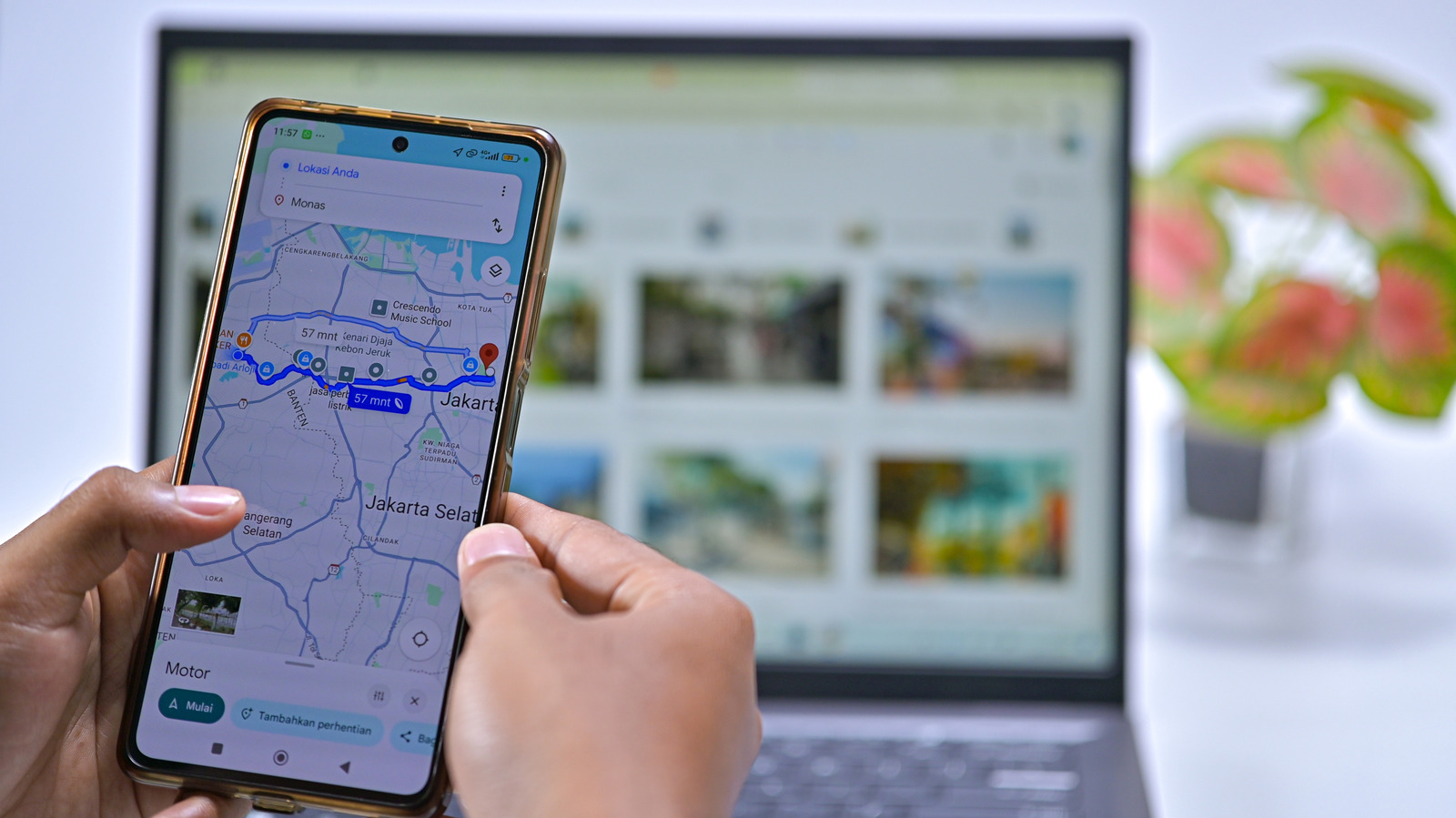
Google Maps can save Home and Work locations so they are easy to find when you need directions.
You can add, change or remove these addresses on the Google Maps website or in its Android and iPhone apps.
On the website, use the Home and Work shortcuts or find Home address in your Google Account’s personal information settings.
In the app, open the You tab, find the Labeled list and use the menu beside Home or Work to edit or remove an address.
You can also choose a point on the map instead of entering a street address.
Saving your exact home location is convenient, but someone with access to your device could see it.
To reduce that risk, you can save a nearby public place instead; adding a Work address can also make it easier to check commute estimates.

Google Maps users can update or remove a saved home address through the web or mobile app.
On the web, users can manage the address through the Home entry in Maps or their Google Account’s Personal info settings.
In the app, users can edit or remove the address from the Labeled list.
Engadget warns that storing a home address on a phone could expose it if someone accesses the device.
It suggests saving a nearby public place instead of a home address as a security-conscious alternative.
- Who
- Google Maps users.
- What
- They can update or remove a saved home address.
- When
- Not stated.
- Where
- On the Google Maps website or app for Android and iPhone.
- Why
- To keep the address current or remove it; the article also describes quick access to home as a convenience.
This story does not have two clearly opposing sides.
No direct quotes in the coverage so far.
This story does not have a timeline yet.
- Platforms
- Google Maps website, Android app and iPhone app
- Web settings path
- Google Account > Personal info > Home address
- App settings path
- You > Labeled
- Alternative
- Save a nearby public place instead of a home address
Sources
Related news
Apple’s HomeView smart home hub is expected to ship in mid-November

e알리미 moves to KT public cloud, with security certification rollout planned

Mbps and MB/s measure data speeds in different ways
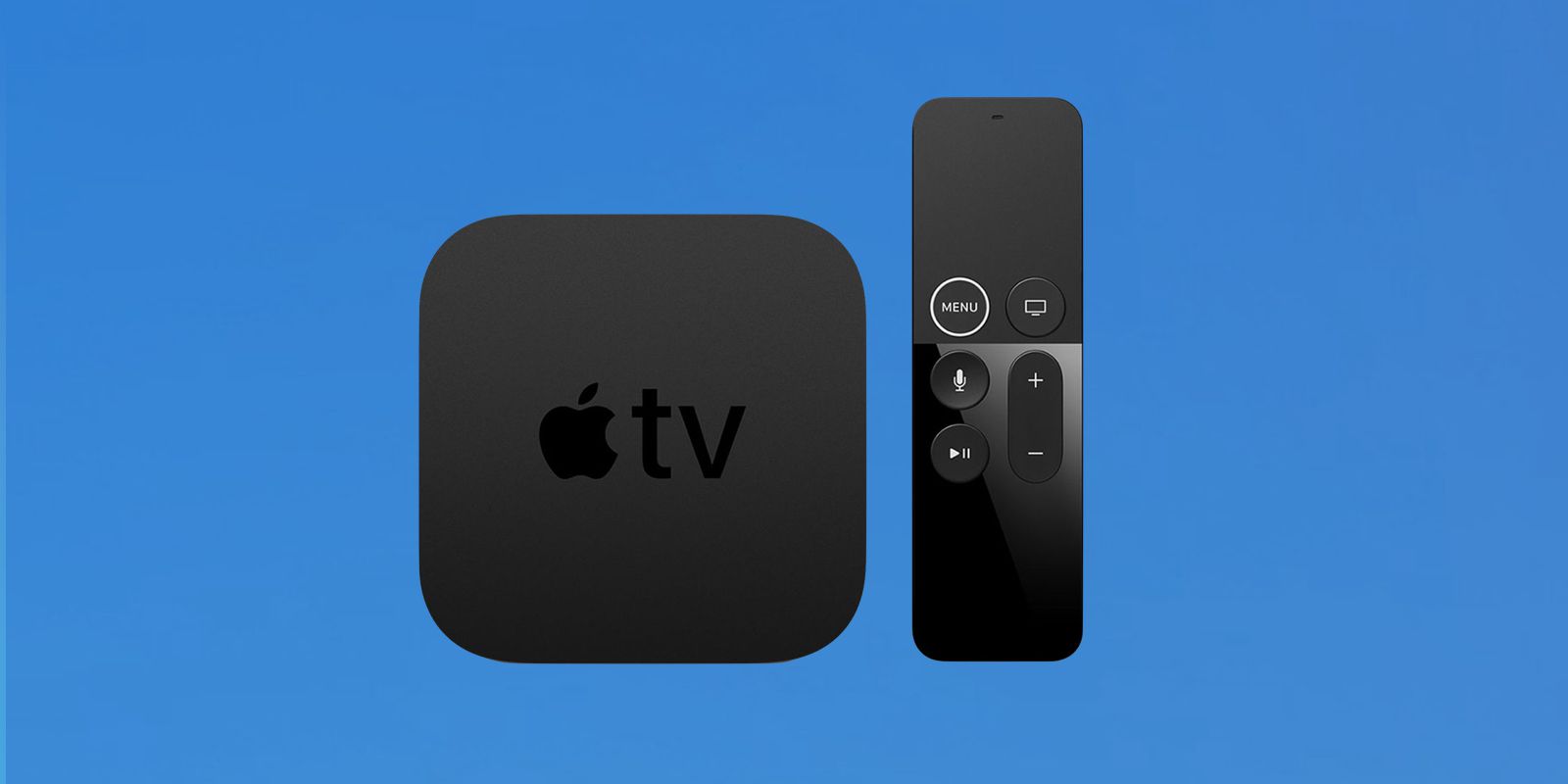
Apple classifies the 2017 Apple TV 4K as vintage

KDE Connect links phones and computers without an online account

Apple confirms October 13 launch focused on smart home products

Apple reportedly plans touchscreen MacBook and iPad mini launch around October 27

Apple reportedly plans new HomePod mini and Apple TV on Oct. 13

Next Apple TV may add hands-free Siri and a speaker in its remote
Entry-level iPad update expected in early 2027

Microsoft unveils Surface Laptop Ultra and redesigned Windows Search