

Science & Tech · Big Tech & Internet · 1 day ago
How to enable Live Activities on iPhone and CarPlay
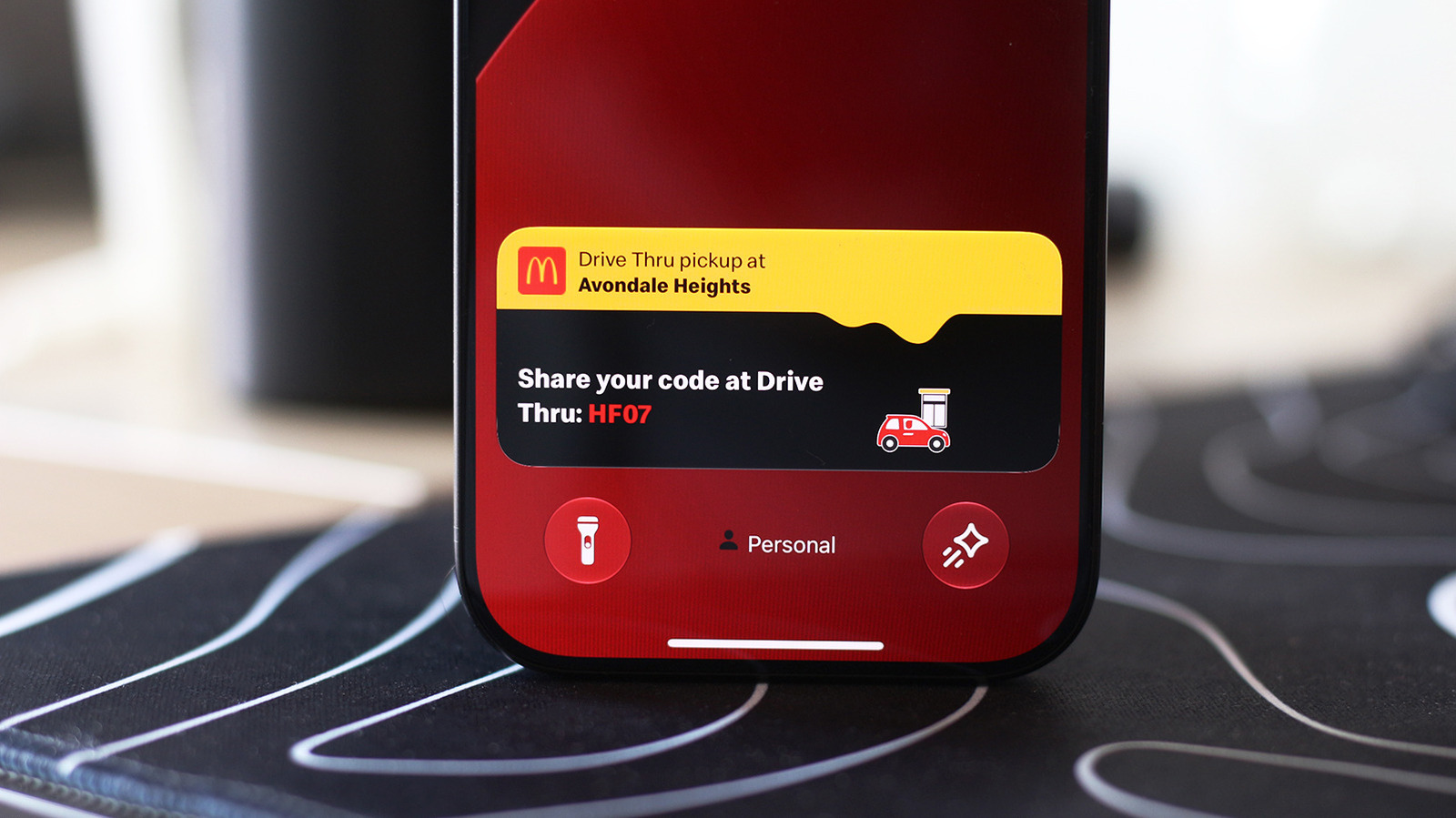
Live Activities let iPhone users see updates without opening the app they come from.
They can show information such as timers, navigation directions, music playback, sports scores, food deliveries and flight updates.
On an iPhone, they can appear in the Dynamic Island and on the Lock screen.
The feature is usually on by default, but users can check its setting for each app under Settings.
They can also allow Live Activities while the phone is locked through Face ID & Passcode settings.
CarPlay can show these updates on its Dashboard or as notifications when another app fills the screen.
If they do not appear in CarPlay, users can check its Live Activities and Suggestions settings or turn off Driving Focus.
The feature can also be disabled for apps whose updates are distracting.

Live Activities display updates from apps on an iPhone without requiring users to open those apps.
They can show timers, navigation directions, music playback, sports scores, food deliveries and flight updates.
On iPhone, Live Activities can appear on the Dynamic Island and Lock screen.
On CarPlay, they appear on the Dashboard or as notifications when another app fills the screen.
Users can check settings on iPhone and CarPlay if Live Activities are not appearing.
- Who
- iPhone users and drivers using CarPlay.
- What
- How to enable and view Live Activities on iPhone and CarPlay.
- When
- Not stated
- Where
- On iPhone, including the Dynamic Island and Lock screen, and on CarPlay displays.
- Why
- Live Activities show useful app updates without users having to keep opening the apps.
This story does not have two clearly opposing sides.
No direct quotes in the coverage so far.
This story does not have a timeline yet.
- iPhone setting
- Settings > Apps > select an app > enable Live Activities
- Lock Screen setting
- Settings > Face ID & Passcode > Allow Access When Locked
- CarPlay setting
- In CarPlay Settings, enable Live Activities and Suggestions in CarPlay or Suggestions in Dashboard
- CarPlay display
- Live Activities appear on the Dashboard or as notifications at the bottom of the display
Sources
Related news

Windows devices need updates before Windows Update certificates expire in 2027

WhatsApp is testing scheduled messages on Android
Android and Chrome shortcuts make it easier to save notes to Google Keep

Parents grow more cautious about children’s social media and AI use

Five vendors hold 70% of the IT service management market

TinyJS aims to make small desktop apps with JavaScript
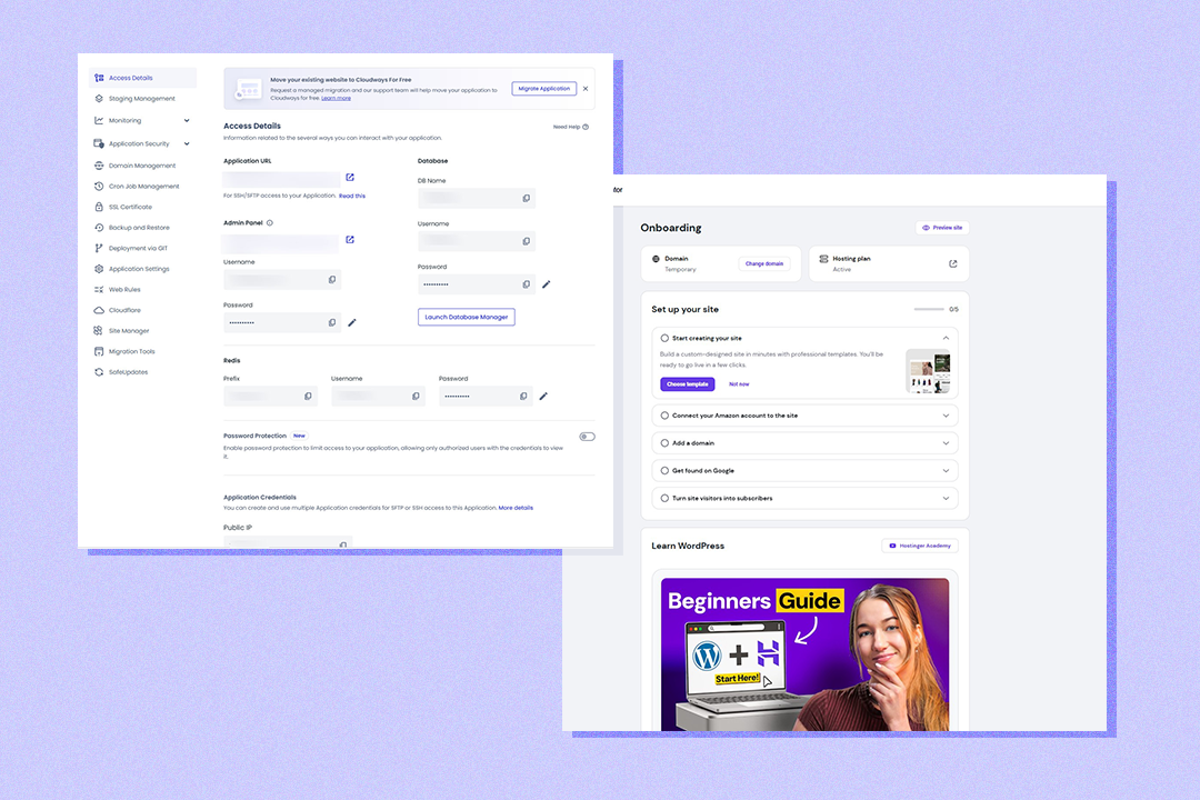
Cloudways and Hostinger offer different web hosting options
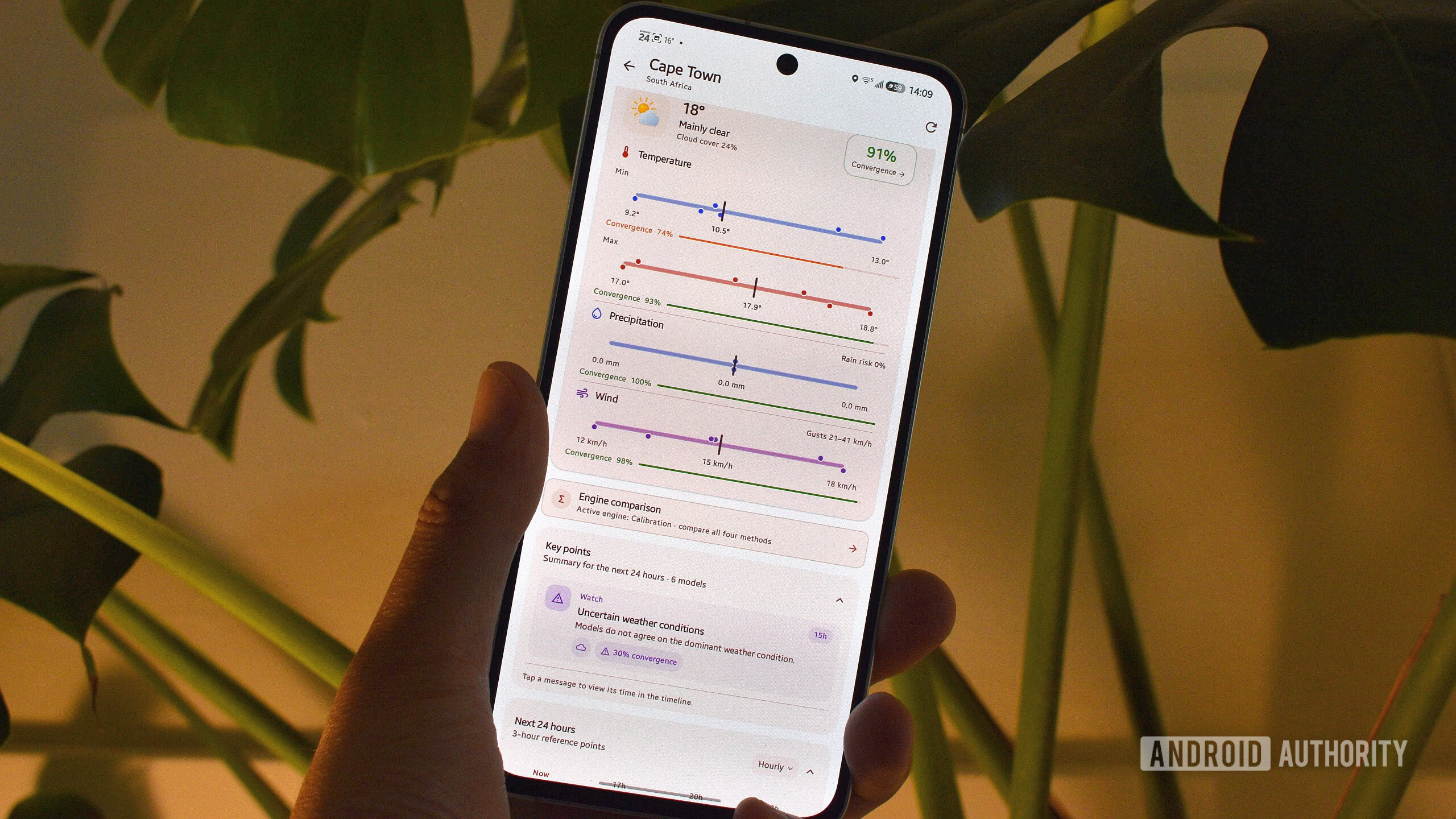
MeteoCompare shows disagreements between weather forecast models
Apple reportedly plans HomeView smart home hub for November
Apple may add Siri microphones and a speaker-equipped remote to Apple TV 4K

Apple confirms October 13 launch focused on smart home products
