
1 week ago
Repurpose an Old iPhone as a Safer Kids’ Phone
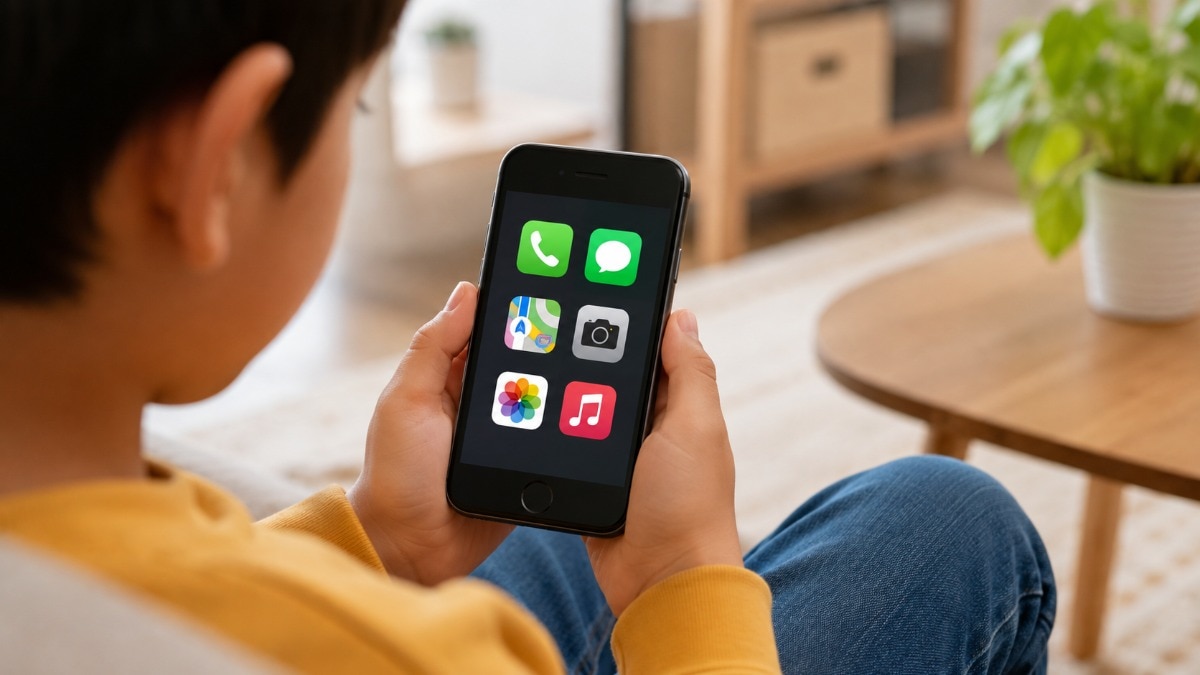
An old iPhone can be changed into a simpler phone for a child.
Apple calls this feature Assistive Access.
It makes app icons bigger and removes some complicated choices.
Parents can choose which apps the child can use.
They can block web browsers while keeping apps such as Maps, Calls and Messages.
A separate passcode helps stop the child from leaving the special mode.
The phone can still support features such as FaceTime and Find My.
However, Assistive Access can be slow and does not work with Screen Time limits.

Apple’s Assistive Access simplifies an iPhone with large tiles and fewer options.
Parents can select approved apps and leave browsers such as Safari and Chrome unavailable.
Calls, Messages, Music, notifications and other features can be customized.
A separate four-digit passcode helps prevent children from exiting Assistive Access.
The mode may feel sluggish, ignores Screen Time limits and has occasional Messages problems.
- Who
- Parents and children using an iPhone with Apple’s Assistive Access feature.
- What
- Assistive Access can repurpose an old iPhone as a simplified, more controlled device for a child.
- Where
- The feature is enabled through Settings > Accessibility > Assistive Access on an iPhone.
- When
- Assistive Access was introduced with iOS 17; Apple is expected to add further browser controls in iOS 27.
- Why
- It gives parents more control over apps, contacts, internet access and other phone functions.
Benefits
Drawbacks
Parental control
Benefits
Parents can limit apps, browsers, contacts, playlists, notifications and other functions.
Drawbacks
Assistive Access does not recognize Screen Time limits, so parents may have fewer controls than expected.
Usability
Benefits
The simplified interface uses large tiles and fewer choices, which can make the phone easier to use.
Drawbacks
The mode can feel sluggish, and Messages may freeze after repeated emoji searches.
Everyday features
Benefits
Children can retain access to useful features such as FaceTime, Maps and Find My.
Drawbacks
The iPhone must be taken out of Assistive Access before it can be shut down.
Key facts
- Feature
- Assistive Access
- Introduced
- iOS 17
- Interface options
- Grid or row layouts with large app tiles
- Test device
- An old iPhone 13
- Apps tested
- Calls, Messages, Maps, Camera, Photos and Music
- Security
- A separate four-digit passcode
- Known limitations
- It can feel sluggish, does not recognize Screen Time limits and may cause Messages to freeze after repeated emoji searches.