

Archive · 28 Jun 2025
How to Disable AI: Microsoft Copilot Features in Windows
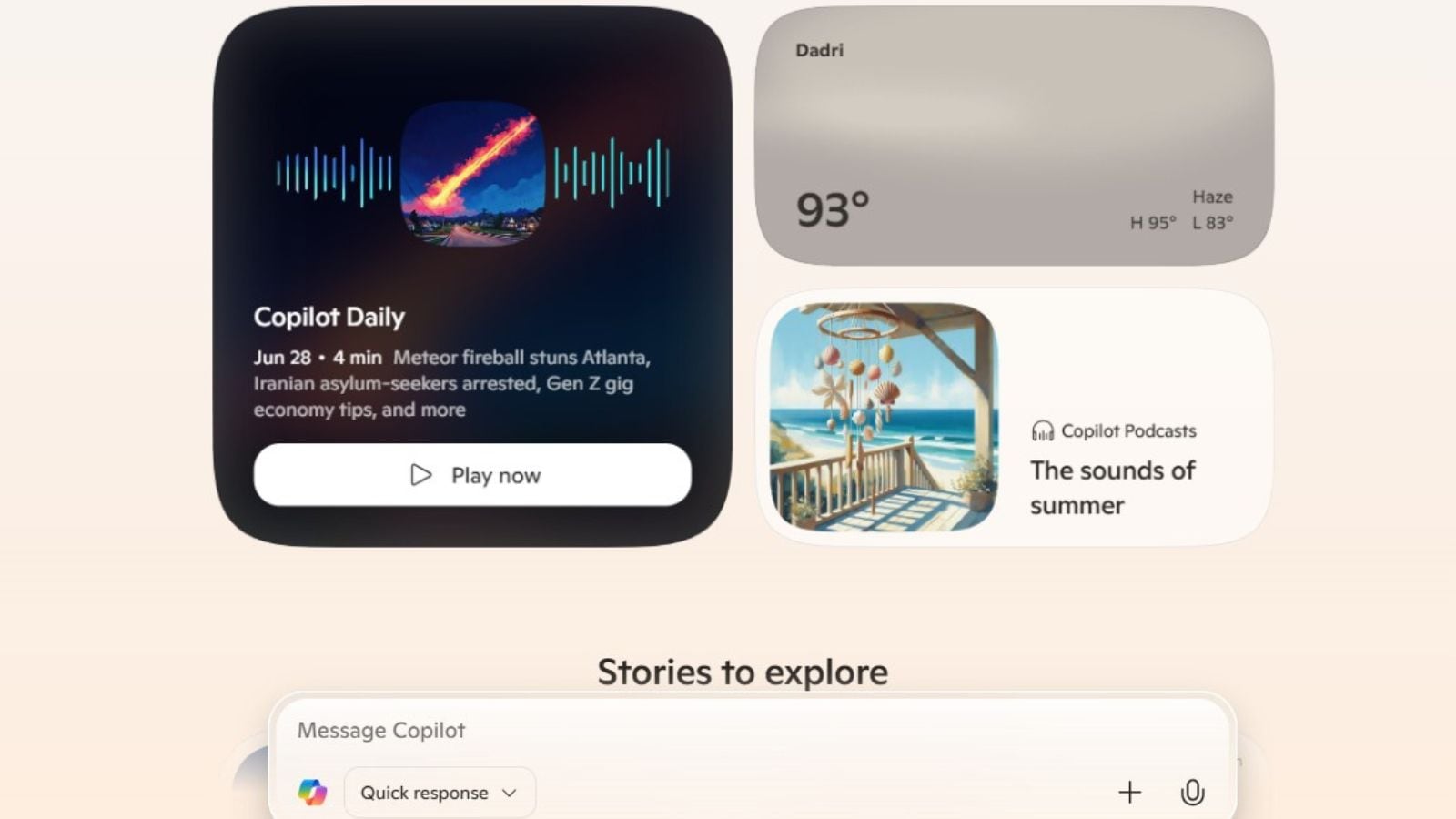
Microsoft has added AI, like a digital assistant called Copilot, to Windows 11 and programs.
You can turn off some of these features.
You can remove Copilot from your taskbar and stop it from starting automatically.
You can also completely uninstall it through the settings.
In Microsoft Edge, you can hide the Copilot button.
In Notepad, you can disable the AI features.
However, the AI features in Paint cannot yet be turned off.
These steps help you control how much AI you use on your computer.

Microsoft has integrated AI features like Copilot into Windows 11 and its applications.
Copilot can be unpinned from the taskbar and its auto-start feature disabled in settings.
Copilot can be uninstalled from Windows by accessing the installed apps settings.
The Copilot button can be hidden within the Microsoft Edge browser.
AI features in Notepad can be disabled, but not yet in Paint.
- Who
- Users who want to limit or remove AI features in Windows.
- What
- Ways to disable AI features like Copilot in Windows 11 and its applications.
- When
- Information is current as of the provided article publication date.
- Where
- On Windows 11 PCs and Microsoft applications.
- Why
- To manage or remove AI features like Copilot from Windows and other applications.
Users Desiring Control
Microsoft's Perspective
Control vs. Integration
Users Desiring Control
Users want the option to control and potentially disable AI features like Copilot.
Microsoft's Perspective
Microsoft integrates AI features for enhanced user experience.
- Operating System
- Windows 11
- AI Assistant
- Copilot
- Applications Affected
- Notepad, Paint, Microsoft Edge
- Taskbar Removal
- Right-click and 'unpin'
- Uninstall Method
- Settings > Apps > Installed Apps